


If you regularly use Claude, Cursor, or other MCP-enabled AI tools to troubleshoot server issues, the value of BT Panel MCP Server is immediate: it brings the most common website, log, and system status query capabilities from BT Panel into the conversation, eliminating the extra layer of clicking through the panel. This article is based on SuxyEE/bt-panel-mcp-server which has been organized from a public repository into a Chinese tutorial, focusing on installation, configuration, and risk boundaries without copying the original text verbatim.
If you are also building your own AI operations and development workflow, you might also want to check out AI-Assisted WordPress Operations Tutorial、Codex Integration with Third-Party Models Practice、AI Development Category Page 和 Website Tools Centerto connect code, content, and server troubleshooting together.
Let's start with the conclusion: Who is this project best for?
As of July 22, 2026, the repository's README and package.json show that the project is named bt-panel-mcp-server, the npm version is 0.1.0, and the runtime environment requires Node.js >= 18. It is suitable for those who are already using BT Panel and wish to integrate log viewing, site information reading, and system status querying into an AI assistant.
More precisely, it is not meant to replace BT Panel itself, but to turn common operations into natural language entry points. The default mode is read-only, which is important because it means you can first treat it as a secure query layer, rather than granting write permissions to the model right from the start.
What exactly can the repository do?
The official README clearly lists: in read-only mode, you can list websites, check Nginx and application logs, view system status, read files, and view site configurations and backup information. If you switch the BT_MODE switch to full,才会额外开放建站、停站、绑域名、备份和写文件等动作。
这意味着它有两个很典型的使用场景:一是你先让 AI 帮你读日志和定位问题;二是你确认边界后,再让它执行明确的面板管理动作。第二类操作的风险更高,生产站建议单独做审批习惯。
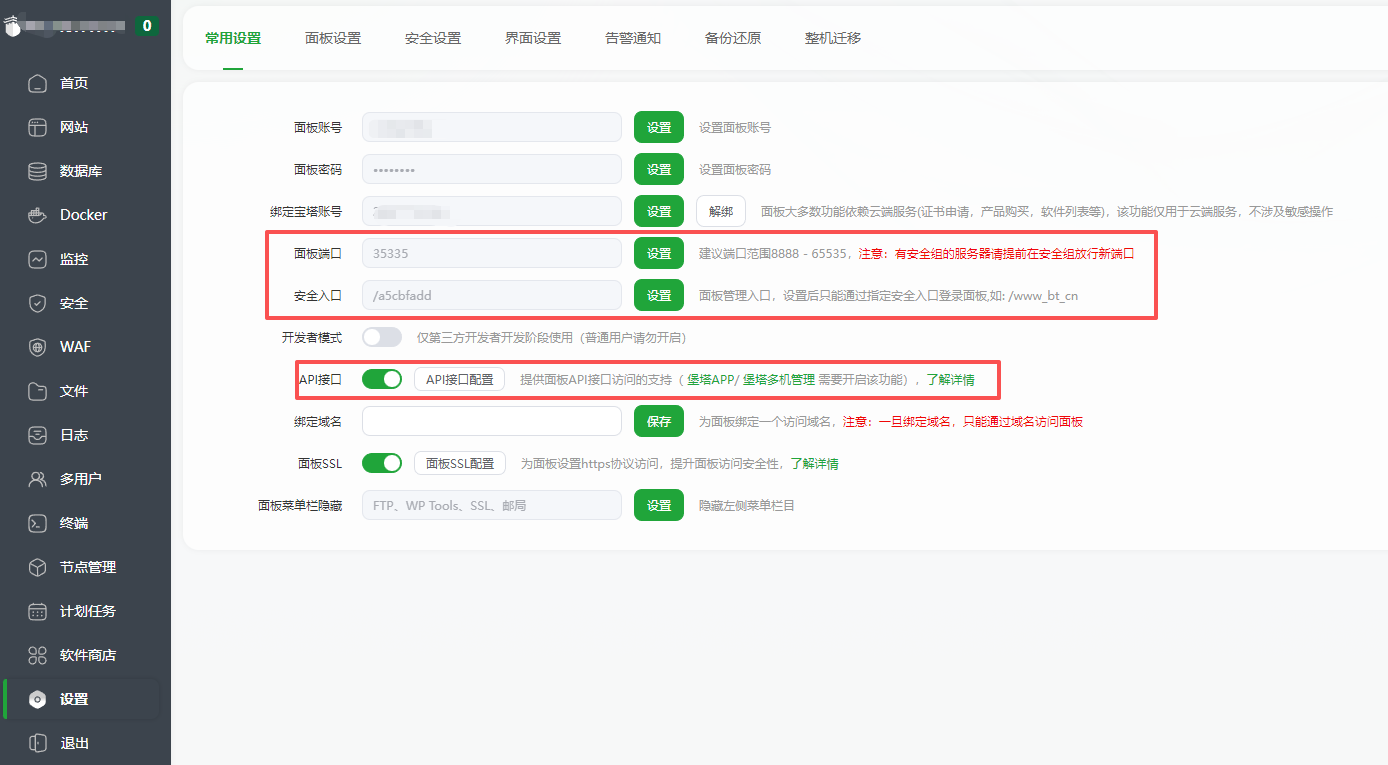
图片来源:SuxyEE/bt-panel-mcp-server 官方仓库,用于说明端口、安全入口和 API 配置位置。
第 1 步:先在宝塔后台开 API
仓库官方快速开始的第一步不是装 Node,而是先去宝塔面板打开 API 接口。你要记住三项信息:面板端口、安全入口路径、API 密钥。另外,README 明确要求把本机 IP 加入 API 白名单,否则请求会被拒绝。
BT_PANEL_URL 的拼法 也完全依赖这里的设置。比如你用了自定义端口和安全入口,那么最终地址就要写成 http://服务器IP:端口/安全入口 或 HTTPS 版本,不能只填一个裸 IP。
第 2 步:在 Claude、Cursor 或其他 MCP 客户端里配置
官方 README 给了两种方式:推荐 npx -y bt-panel-mcp-server,这样不需要你手动维护本地构建;如果你已经克隆源码,也可以直接用本地 dist/index.js 启动。对于大多数普通使用者,npx 方式更省事,也更方便后续跟版本。
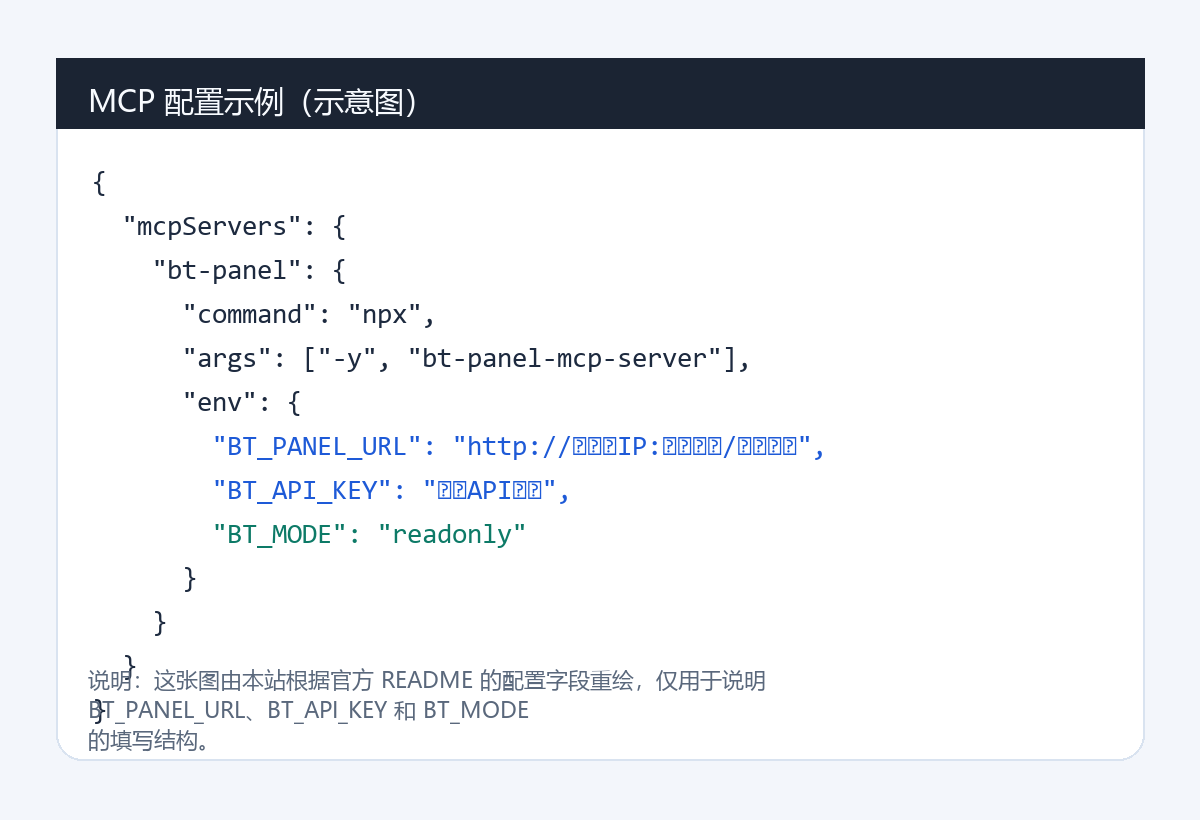
示意图:本站原创配图,依据官方 README 的字段结构重绘,仅用于说明 MCP 配置格式。
配置时最核心的三个环境变量是:
BT_PANEL_URL:宝塔面板地址,支持自定义端口、安全入口和 HTTPS。BT_API_KEY:宝塔 API 密钥。BT_MODE:readonly或full。
第 3 步:先用 readonly 跑通,再决定要不要 full
这一点我建议你不要跳。因为仓库本身就把默认模式设成 readonly,作者的意图很明确:先解决查询和排障,再决定是否开放写权限。如果你的主要诉求是“让 AI 帮我看宝塔上的日志、CPU、磁盘和站点配置”,其实 readonly 已经足够覆盖大半需求。
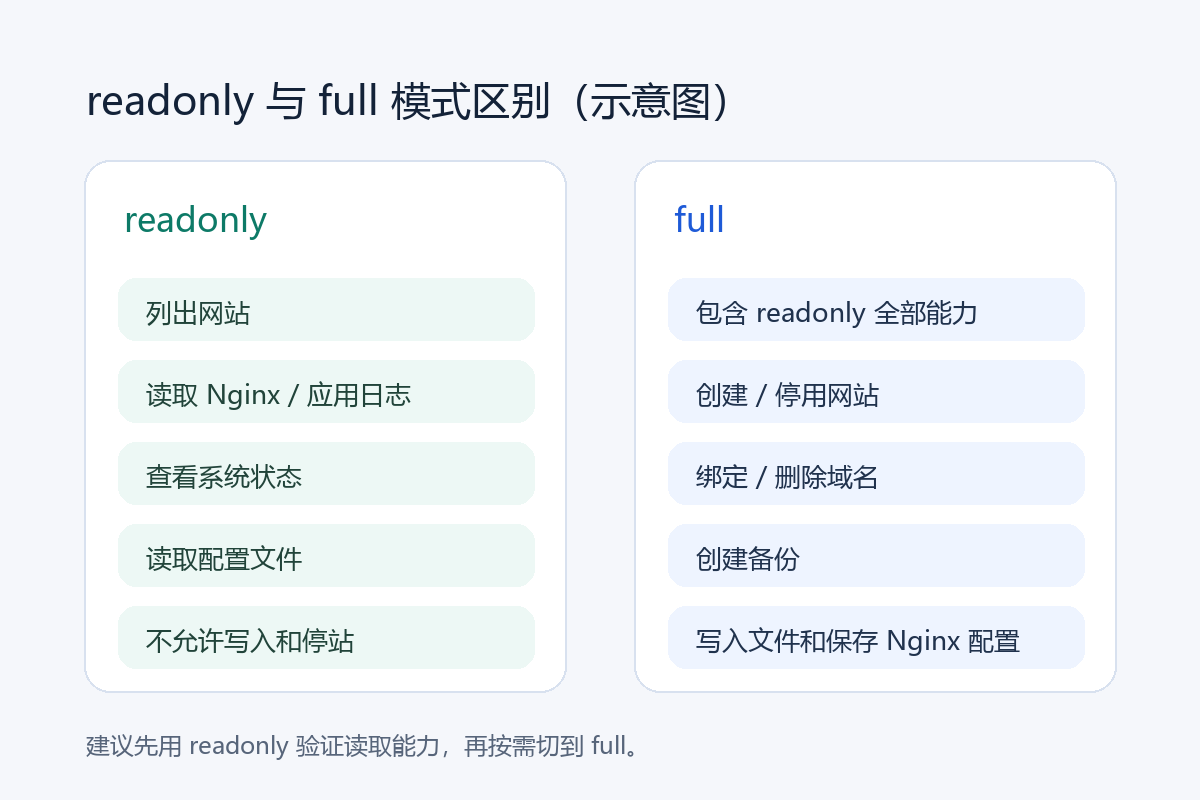
示意图:本站原创配图,用于说明 readonly 与 full 两种工具模式的使用边界。
只有当你确定要让 AI 帮你做建站、绑定域名、停用测试站、写入 HTML 或保存 Nginx 配置时,才改成 full。哪怕切到 full,也建议先在测试站验证,不要直接拿生产站做第一轮实验。
第 4 步:首次验证建议怎么做
第一次连上以后,不要急着让它改站。最稳妥的顺序是:
- 先让它列出所有网站,确认 API 通了。
- 再让它读某个站点最近 100 到 200 行 Nginx 错误日志。
- 接着看一次系统状态,确认 CPU、内存、磁盘字段都能返回。
- 如果这些都正常,再考虑是否在测试站开启 full 模式。
Practical checklist
- 宝塔 API 已开启,且你的本机 IP 在白名单里。
- BT_PANEL_URL 带上了正确端口和安全入口。
- Node 版本不低于 18。
- 先用 npx 方式跑通配置,再考虑本地源码方式。
- 默认先用 readonly,不要一开始就给生产站 full 权限。
- 写配置、停站、改域名等操作先在测试站验证。
Frequently asked questions
宝塔面板 MCP Server 必须开 full 模式吗?
不是。仓库默认就是 readonly,只开放读取和查询能力。只有你确实需要创建网站、绑定域名、写文件这类动作时,才把 BT_MODE 改成 full。
BT_PANEL_URL 里为什么有时要带安全入口?
如果你的宝塔面板设置了安全入口,访问地址就不只是 IP 和端口,还要带上对应路径,否则 API 请求会找不到正确入口。
把宝塔接入 Claude 或 Cursor 后最该注意什么?
重点是 API 白名单、只监听可信环境、先用 readonly 试跑,以及不要让模型直接操作生产站高风险写动作。
Join the discussion
You must log in to post a comment.
After logging in, you can join the discussion. New users can register an account for free.
Do not post spam comments, advertisements, or content with malicious links. Comments must comply with relevant laws, regulations, and community guidelines.