


If you regularly use Claude, Cursor, or other MCP-enabled AI tools to troubleshoot server issues, the value of BT Panel MCP Server is immediate: it brings the most common website, log, and system status query capabilities from BT Panel into the conversation, eliminating the extra layer of clicking through the panel. This article is based on SuxyEE/bt-panel-mcp-server which has been organized from a public repository into a Chinese tutorial, focusing on installation, configuration, and risk boundaries without copying the original text verbatim.
If you are also building your own AI operations and development workflow, you might also want to check out AI-Assisted WordPress Operations Tutorial、Codex Integration with Third-Party Models Practice、AI Development Category Page and Website Tools Centerto connect code, content, and server troubleshooting together.
Let's start with the conclusion: Who is this project best for?
As of July 22, 2026, the repository's README and package.json show that the project is named bt-panel-mcp-server, the npm version is 0.1.0, and the runtime environment requires Node.js >= 18. It is suitable for those who are already using BT Panel and wish to integrate log viewing, site information reading, and system status querying into an AI assistant.
More precisely, it is not meant to replace BT Panel itself, but to turn common operations into natural language entry points. The default mode is read-only, which is important because it means you can first treat it as a secure query layer, rather than granting write permissions to the model right from the start.
What exactly can the repository do?
The official README clearly lists: in read-only mode, you can list websites, check Nginx and application logs, view system status, read files, and view site configurations and backup information. If you switch the BT_MODE switch to full, then additional actions such as site creation, suspension, domain binding, backup, and file writing will be enabled.
This means it has two typical use cases: first, you let AI help you read logs and locate problems; second, after you confirm the boundaries, you let it perform explicit panel management actions. The second type of operation is riskier; for production sites, it is recommended to adopt a separate approval habit.
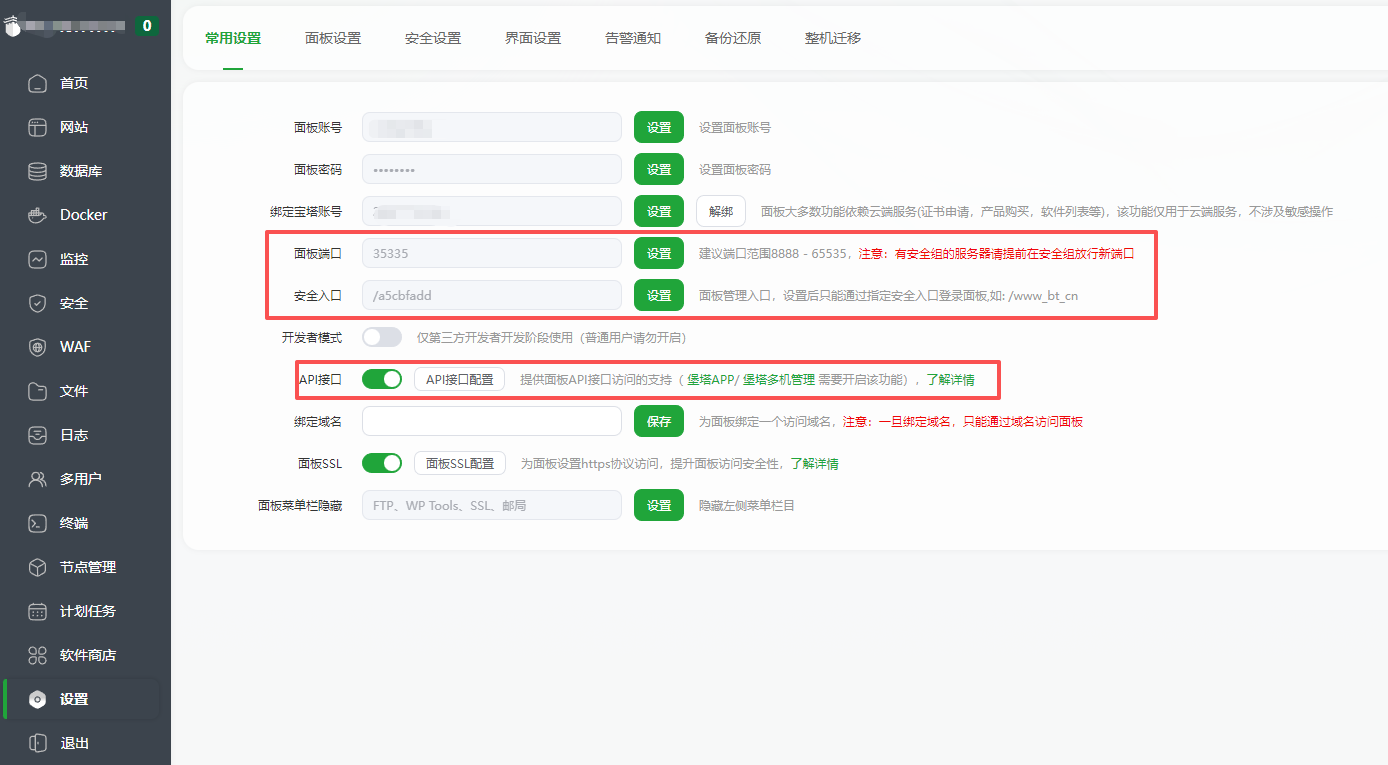
Image Source:Official repository of SuxyEE/bt-panel-mcp-server, used to show where the port, security entrance, and API configuration are located.
Step 1: First enable the API in the BT Panel backend
The first step in the official quick start of the repository is not to install Node, but to go to the BT Panel (aaPanel) to enable the API interface. You need to remember three pieces of information: panel port, security entrance path, and API key. In addition, the README explicitly requires adding your local IP to the API whitelist; otherwise, requests will be rejected.
How to construct BT_PANEL_URL It also completely depends on the settings here. For example, if you use a custom port and security entrance, the final address should be written as http://serverIP:port/security_entrance or HTTPS version; you cannot just fill in a bare IP.
Step 2: Configure in Claude, Cursor, or other MCP clients
The official README provides two methods: recommended npx -y bt-panel-mcp-server, so you don't need dist/index.js Startup. For most ordinary users, the npx approach is more convenient and easier to keep up with subsequent versions.
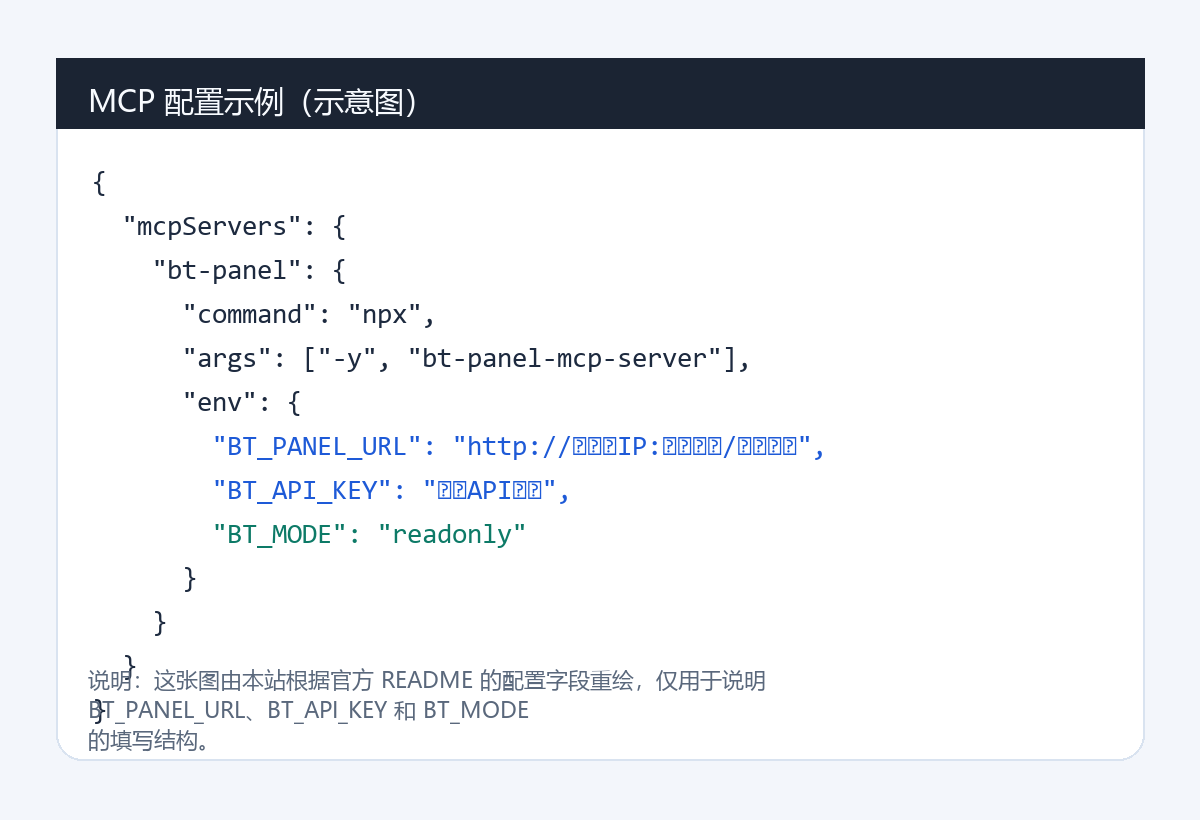
Illustration: Original diagram by this site, redrawn based on the field structure of the official README, used only to explain the MCP configuration format.
The three most critical environment variables during configuration are:
BT_PANEL_URL: Baota panel address, supporting custom port, security entry, and HTTPS.BT_API_KEY: Baota API key.BT_MODE:readonlyorfull。
Step 3: First run through with readonly, then decide whether to go full.
I suggest you do not skip this point. Because the repository itself sets the default mode to readonly, the author's intention is clear: first solve query and troubleshooting, then decide whether to grant write permission. If your main requirement is "let AI help me view logs, CPU, disk, and site configurations on BT Panel", readonly already covers most of the needs.
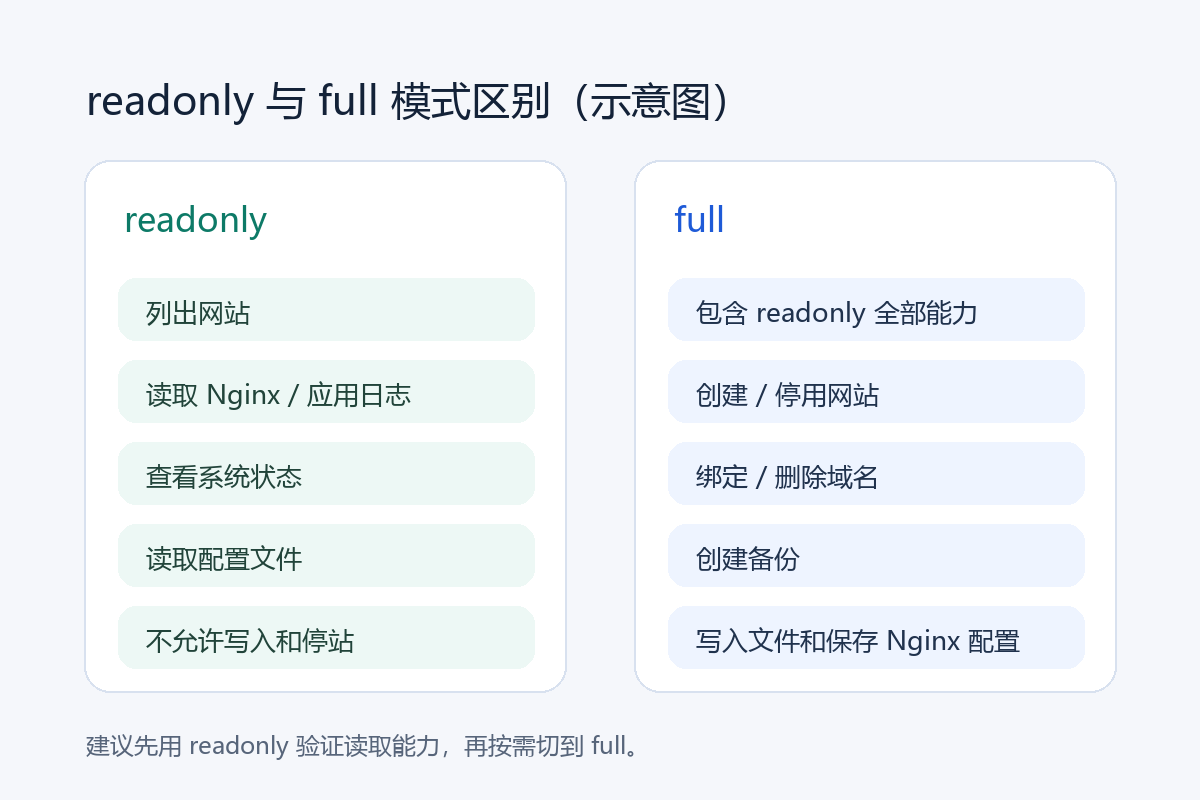
Diagram: Original illustration from this site, used to explain the usage boundaries of the readonly and full tool modes.
Only switch to full when you are certain you want AI to help you create sites, bind domains, disable test sites, write HTML, or save Nginx configurations. Even if you switch to full, it is recommended to verify on a test site first and not use the production site for the first round of experiments.
Step 4: How to perform initial verification.
After connecting for the first time, do not rush to let it modify sites. The safest order is:
- First, have it list all websites to confirm the API is working.
- Then let it read the last 100 to 200 lines of Nginx error logs for a certain site.
- Then check the system status once to confirm that CPU, memory, and disk fields are all returned.
- If all these are normal, then consider whether to enable full mode on the test site.
Practical checklist
- The Baota API is enabled and your local IP is in the whitelist.
- BT_PANEL_URL carries the correct port and security entrance.
- Node version not lower than 18.
- First run through the configuration using the npx method, then consider the local source code method.
- By default, use readonly first; do not give production site full permissions from the start.
- Operations such as writing configurations, stopping sites, and changing domain names should be verified on a test site first.
Frequently asked questions
Does the BT-Panel MCP Server have to be run in full mode?
No. The repository defaults to readonly, granting only read and query capabilities. Only when you really need actions like creating websites, binding domains, and writing files, change BT_MODE to full.
Why does BT_PANEL_URL sometimes need to include the security entrance?
If your BT Panel has a security entrance set, the access URL is not just the IP and port; you also need to include the corresponding path, otherwise the API request cannot find the correct entry.
What is the most important thing to watch out for after connecting BT-Panel to Claude or Cursor?
The key points are the API whitelist, listening only to trusted environments, running a trial in readonly mode first, and not letting the model directly perform high-risk write actions on production sites.
Join the discussion
You must log in to post a comment.
After logging in, you can join the discussion. New users can register an account for free.
Do not post spam comments, advertisements, or content with malicious links. Comments must comply with relevant laws, regulations, and community guidelines.