


Many WooCommerce stores aren't failing to sell—it's inaccurate inventory data that shows in-stock on the frontend but out-of-stock in the backend, dragging customer service and the warehouse into rework. This tutorial, based on WooCommerce official documentation, clearly explains global inventory tracking, individual product inventory, and inventory report checks, suitable for new sites and stores with growing SKUs.
First, decide whether you need to manage global inventory or individual product inventory.
If you have only a few products, manually adjusting inventory can work for a while; but once SKUs grow and people collaborate on order processing, inventory tracking must be standardized. Set global rules first, then decide which products to manage inventory individually and which to use only status alerts.
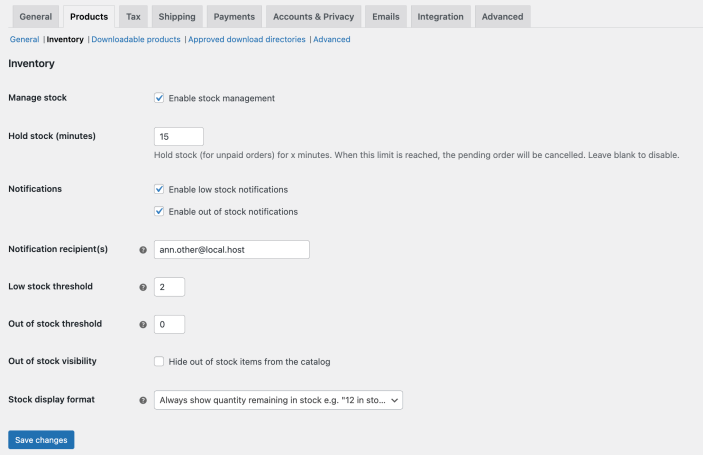
WooCommerce global inventory options page. Image source: WooCommerce official documentation screenshot, used for tutorial reference and illustration.
Step 1: Enable inventory tracking and out-of-stock threshold
In WooCommerce product settings, first enable inventory management, then set time rules for low stock, out-of-stock, and stock holding. Low-stock alerts are not the earlier the better; they should be set based on your replenishment cycle and order volume, otherwise your team will be interrupted by numerous invalid alerts.
Step 2: Set SKU, stock quantity, and backorder strategy at the product level
Global rules are just the foundation; what really affects frontend ordering is the product-level stock quantity, allow backorders, and stock status. If you sell variable products, also check whether key variations have their own inventory management at the variation level, to avoid the parent product showing in-stock while the child variant is actually out of stock.
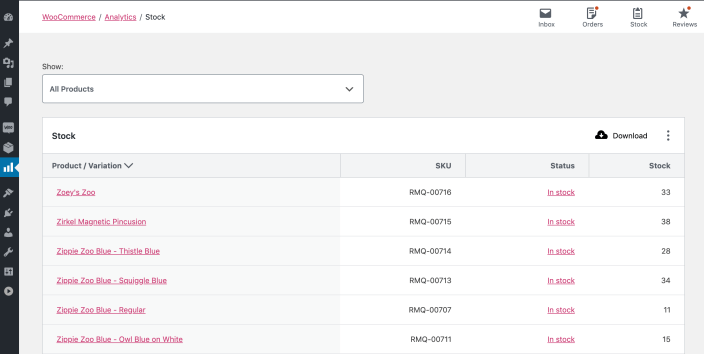
Inventory reports let you quickly view low-stock, out-of-stock, and overstock products. Image source: WooCommerce official documentation screenshot, used for tutorial reference and illustration.
Step 3: Use inventory reports to monitor low-stock and overstock products
Inventory reports are not just for finding nearly sold-out products; they also help you identify SKUs that haven't moved for a long time. For operations, low stock means replenishment risk, while overstock means you should optimize categories, coupons, or product pages to accelerate turnover.
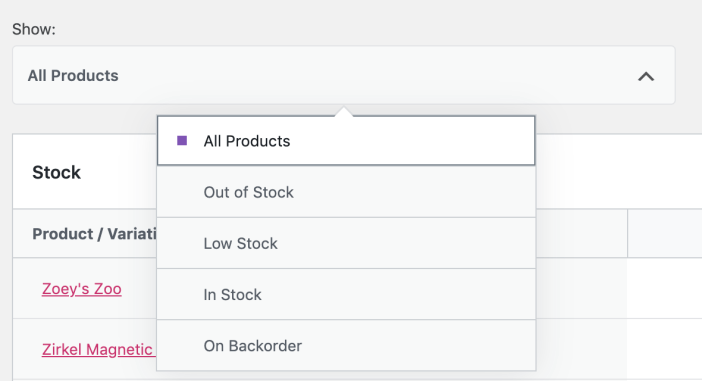
Use the stock status filter to prioritize low-stock and out-of-stock products. Image source: WooCommerce official documentation screenshot, used for tutorial reference and illustration.
Step 4: Perform a real order and inventory deduction test
At least test three scenarios: normal order placement, order cancellation, and manual status change, to verify whether inventory is deducted, restored, and alerts are triggered as expected. If you have connected PayPal or Stripe, also check the stock hold time for pending payment orders to avoid inventory being held for too long.
Practical checklist
- Global inventory management, low-stock alerts, and out-of-stock thresholds are enabled and configured according to business needs.
- Key products and key variations have SKU, stock quantity, and stock status filled in.
- Products that allow backorders have been individually evaluated, not enabled by default for all.
- Inventory reports can now filter out low-stock, out-of-stock, and overstock products.
- Inventory rollback logic after order placement, cancellation, and refund has been tested.
After changing inventory rules, it's recommended to run a test order to see if inventory changes as expected during ordering, cancellation, and refund. This step can be integrated with... Order status and refund process、Product Editor Check Watch together; if your inventory is maintained via bulk spreadsheet, watch the supplementary part. Product CSV Import Will be more stable.
Frequently asked questions
Does WooCommerce inventory management have to be enabled for every product?
Not necessarily. Custom-made, long-term presale, or pure digital products can be handled on a case-by-case basis, but for regular physical products, at least the main SKUs should have inventory tracking enabled; otherwise, the frontend and warehouse can easily get out of sync.
What is a suitable low stock alert threshold?
It depends on your restocking cycle and daily sales velocity. For products with slow restocking and high sales, the threshold should be higher; for products with low sales or fast restocking, you can set it more conservatively. The key is to make the alert actionable.
Why is inventory not restored after an order is cancelled?
You typically need to check whether the order status actually changed to canceled or refunded, and whether inventory management is enabled at the product or variation level. If either the status transition or inventory settings are missing, the rollback may fail.
Join the discussion
You must log in to post a comment.
After logging in, you can join the discussion. New users can register an account for free.
Do not post spam comments, advertisements, or content with malicious links. Comments must comply with relevant laws, regulations, and community guidelines.