


The scariest part of daily product uploads in WooCommerce isn't not knowing how to fill in the fields, but filling them in too quickly without cross-checking the title, price, inventory, and publish status together, only to discover issues after going live on the front end. This tutorial focuses on the sections you should check first in the new product editor, making it ideal as a handover checklist or pre-launch review for operations.
Separate “data entry” and “ready for public launch” into two separate checks.
Many products appear completely filled in on the backend but are not yet ready for public launch. What really needs to be separated is entering product data first, then reviewing price, description, catalog visibility, and publish time from a front-end perspective to avoid making internal drafts public by mistake.

Product name and permalink determine backend search efficiency and affect front-end URL readability. Image source: Screenshot from WooCommerce official documentation, used for tutorial reference.
Step 1: Check the product name, permalink, and core description first.
The product title is not just a backend identifier — it usually influences the URL, breadcrumbs, and the first impression of the product page. If you cram model numbers, marketing buzzwords, and internal notes all into the title, the front-end experience will be messy, and it will be hard to keep SEO consistent later.
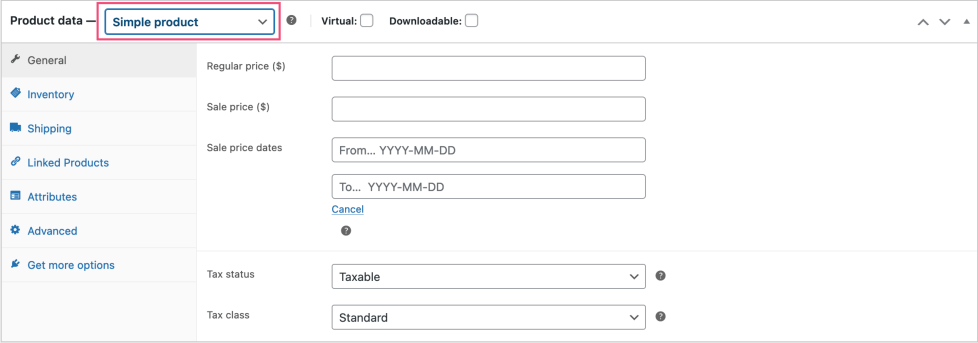
The price section is one of the most error-prone areas during product uploads — it's recommended to review it together with SKU, tax, and sale schedule. Image source: Screenshot from WooCommerce official documentation, used for tutorial reference.
Step 2: Focus on reviewing the price, sale, and inventory sections.
The price and inventory sections are where mistakes can cause direct losses. Regular price, sale price, sale schedule, stock quantity, and out-of-stock status are best reviewed together, rather than being handled separately by different people.
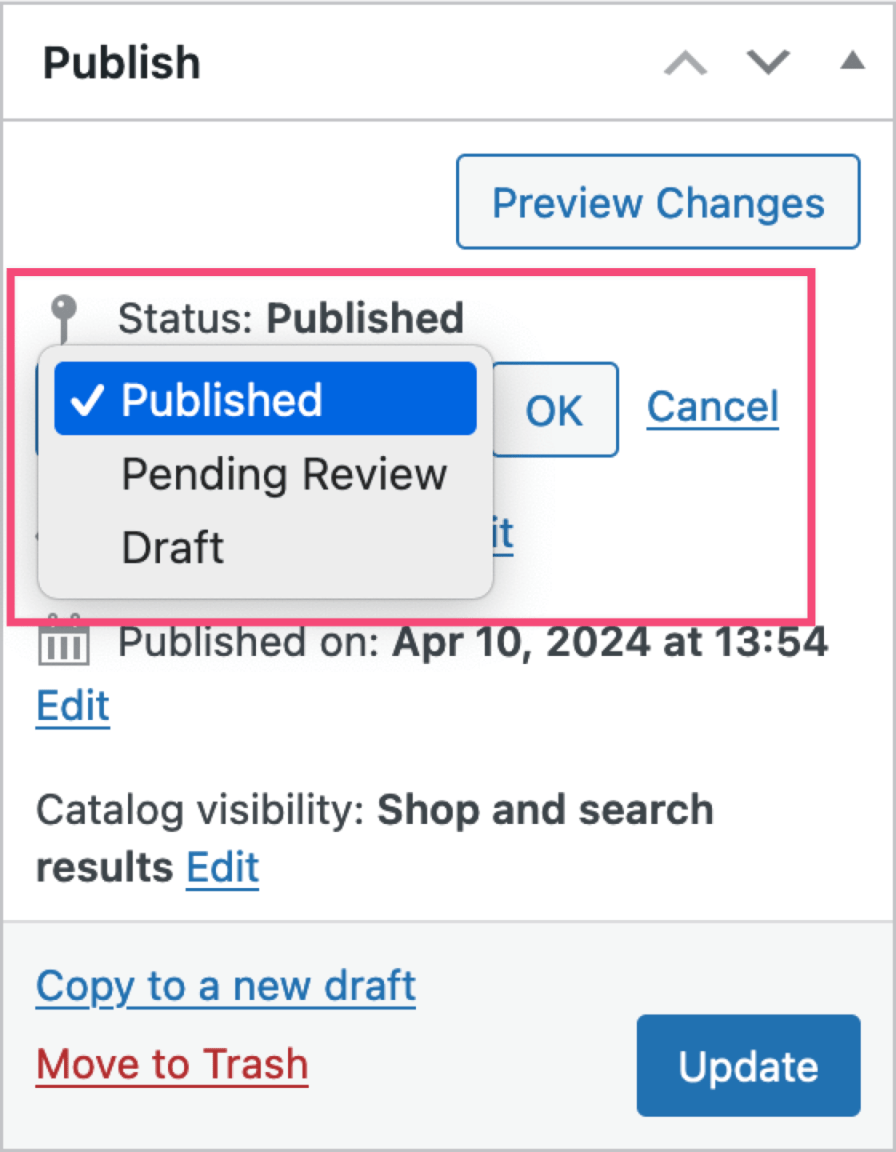
Publish status, catalog visibility, and publish time should be confirmed all at once before making the product live. Image source: Screenshot from WooCommerce official documentation, used for tutorial reference.
Step 3: Check publish status, catalog visibility, and publish time.
Many “why can't customers find this product” or “why did it suddenly become visible to customers” issues ultimately come down to publish status and catalog visibility. Especially when multiple people collaborate, it's essential to define clear boundaries between draft, pending review, and published status to avoid publishing incomplete work.
Step 4: Preview the product page from the front end one more time before going live.
At least confirm that the price display, add-to-cart button, short description, and images have no obvious layout issues. Having all the fields filled in on the backend doesn't guarantee the front-end looks correct — themes, plugin extensions, and caching can all cause the final display to differ from what you expected.
Practical checklist
- Product title, permalink, and core description have been reviewed and contain no internal notes.
- Regular price, sale price, sale schedule, and inventory status have been checked together.
- Publish status, catalog visibility, and publish time are in line with the actual plan.
- When collaborating with multiple people, draft, pending review, and published workflows have been clearly separated.
- The product page display has been checked from the front end once more before going live.
The product editor is the last gate before publishing — don't just check the title and images. After saving, it's recommended to review everything in context. Inventory tracking、Product Categories and Product Page SEO Checklist; If this product has multiple variants, you need to go back and confirm. Variable Product price, images, and default options.
Frequently asked questions
Why is the product displayed as published in the admin but not visible on the frontend?
Usually you should first check catalog visibility, stock status, product categories, caching, and whether it is hidden by scheduled publishing or theme template conditions.
Should all keywords be crammed into the product title?
Not recommended. The title should first let customers quickly understand what the product is, with search coverage being secondary. Over-stuffing keywords affects readability and makes frontend cards and breadcrumbs look unsightly.
What should be checked first when adding a new product?
Usually it's price, stock, and publish status. They directly affect whether it can be sold, whether the price will be wrong, and whether customers can place orders normally on the front end.
Join the discussion
You must log in to post a comment.
After logging in, you can join the discussion. New users can register an account for free.
Do not post spam comments, advertisements, or content with malicious links. Comments must comply with relevant laws, regulations, and community guidelines.