


The most time-saving method for WooCommerce bulk listing is usually not manually entering products, but getting the CSV import process running smoothly first. As long as the import template, field mapping, and update strategy are clear, subsequent tasks—whether bulk adding new products, migrating products from an old site, or correcting prices and inventory—will be much more efficient.
First, decide whether this is an initial import or a batch update of existing products.
These two scenarios use the same tool, but the operational focus is completely different. First-time imports place more emphasis on field completeness, while bulk updates rely more on SKU, ID, or unique identifiers to avoid overwriting and misaligning existing products.

First, locate the import/export entry on the product list page, then start batch processing. Image source: Screenshot from WooCommerce official documentation, used for tutorial reference and illustration.
Step 1: First export a copy of existing products as a template
If you already have products on your site, it's safest to export a CSV first as a reference template. This allows you to directly see the field format WooCommerce expects, especially the formatting of columns like categories, attributes, image URLs, and inventory, reducing trial and error later.
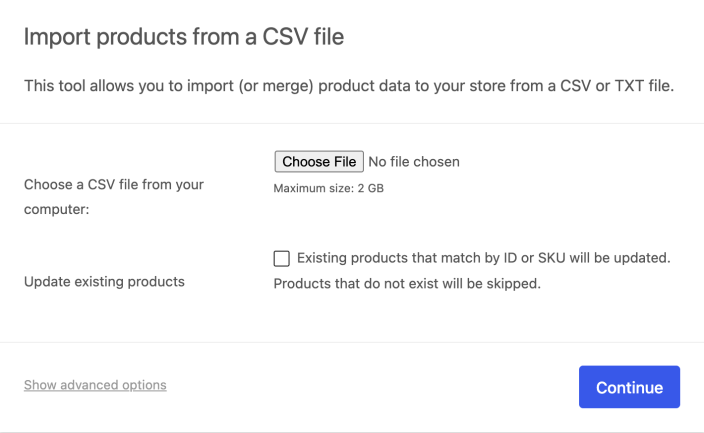
When uploading a CSV, first confirm the encoding, delimiter, and whether to update existing products. Image source: WooCommerce official documentation screenshot, used for tutorial citation purposes.
Step 2: Check encoding, delimiter, and image sources before uploading CSV
The most common issue with Chinese CSVs is inconsistent encoding, causing garbled fields after import; another frequent problem is entering inaccessible addresses in the image column. Before uploading, check UTF-8 encoding, column header spelling, and whether remote image URLs are genuinely accessible—this can save a lot of rework time.
Step 3: Do field mapping carefully
Field mapping is not as simple as clicking next. If price, SKU, category, or attributes are mapped to the wrong column, the import can still complete, but the product data will become very messy. For new sites doing their first import, it is recommended to start with a small batch of 3 to 5 products for validation.
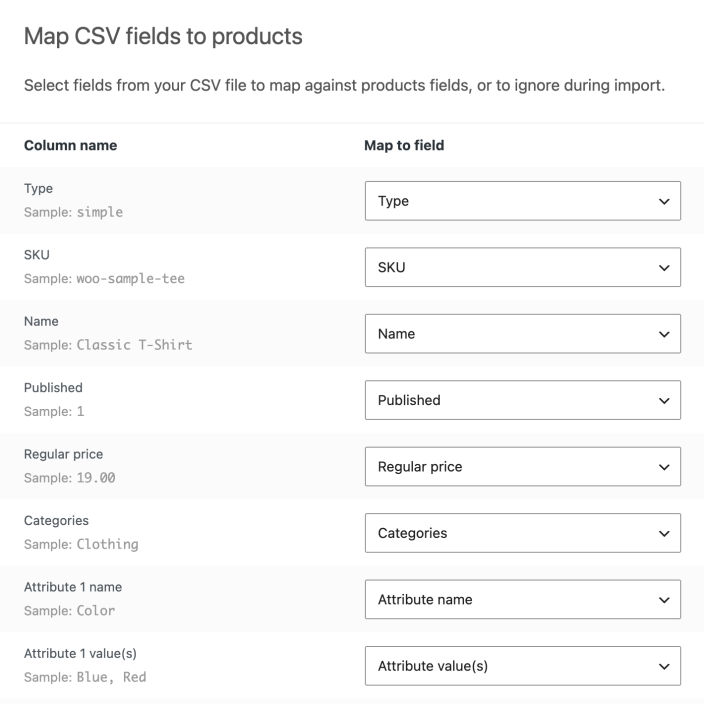
Field mapping is the step with the highest import success rate but also the most prone to errors. Image source: Screenshot from WooCommerce official documentation, used for tutorial reference and illustration.
Step 4: Spot-check product pages and backend data after import
At least check whether the title, price, stock, category, images, and attributes are displayed correctly. If you are updating existing products, also confirm that the system recognizes the original product instead of recreating duplicate entries.
Practical checklist
- Two scenarios have been differentiated: first-time import and bulk update of existing products.
- Before importing, export an existing product as a template for reference.
- CSV encoding, column headers, delimiter, and remote image URLs have been checked.
- Field mapping was tested in small batches, not directly imported in full.
- After import, product pages, inventory, categories, and images have been spot-checked for correctness.
CSV Import is suitable for batch processing, but it relies on having several foundational structures set up first. Before officially importing a large number of products, it is recommended to first confirm Product Categories、Product Attributes and Variable product rules are already unified; after import, use Product editor checklist spot-check prices, inventory, and publication status.
Frequently asked questions
Why did my import succeed, but the product images are not displayed?
Usually, the image URL is not publicly accessible, returns a redirect, or the filename contains unusual characters. WooCommerce being able to read the column does not guarantee successful fetching of remote images.
Should I rely on the product name when updating existing products?
Not recommended. Product names may be altered; SKU or system ID is more suitable as a stable identifier, otherwise duplicate products can easily be created during batch updates.
Can I import all products at once?
Technically possible, but not recommended to do a full import the first time. Validate field mapping and image fetching with a small batch first, and after confirming correctness, then scale up to the full import for greater stability.
Join the discussion
You must log in to post a comment.
After logging in, you can join the discussion. New users can register an account for free.
Do not post spam comments, advertisements, or content with malicious links. Comments must comply with relevant laws, regulations, and community guidelines.