


WooCommerce Local Pickup may seem like just a shipping option, but what truly determines the experience is: who can see it, where to pick up, and what instructions customers can read before pickup. This tutorial breaks down the zones, instructions, and checkout display methods for local pickup clearly, following the official setup path.
First determine whether local pickup is a supplement to physical store operations or the primary fulfillment method.
If you run both a physical store and online sales, local pickup is usually a supplementary option; if your business mainly relies on same‑city pickup, it becomes the core fulfillment path. These two scenarios determine whether you should charge a pickup fee, highlight business hours, and restrict display to specific zones.
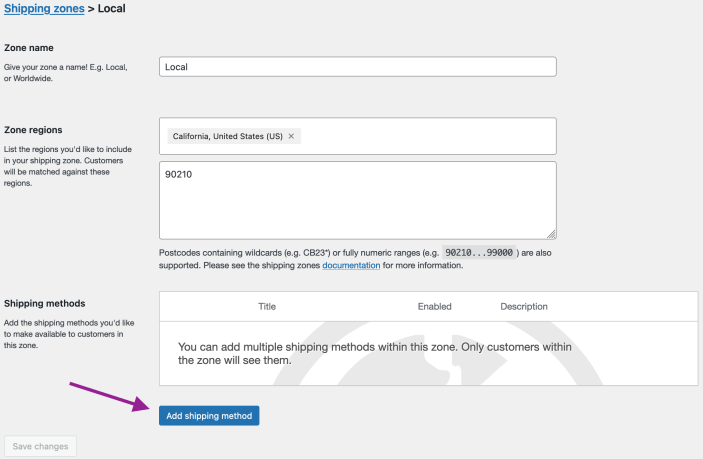
Local pickup also needs to be placed in the correct shipping zone first, so that users nationwide don't see an inapplicable pickup option. Image source: WooCommerce official documentation screenshot, used for tutorial citation and explanation.
Step 1: Add Local Pickup to the Correct Shipping Zone
Local pickup also depends on shipping zones. If your store only serves the same city or a specific range of postal codes, do not let customers nationwide see this option on the checkout page; otherwise, customer service will spend a lot of time explaining why they can't pick up.
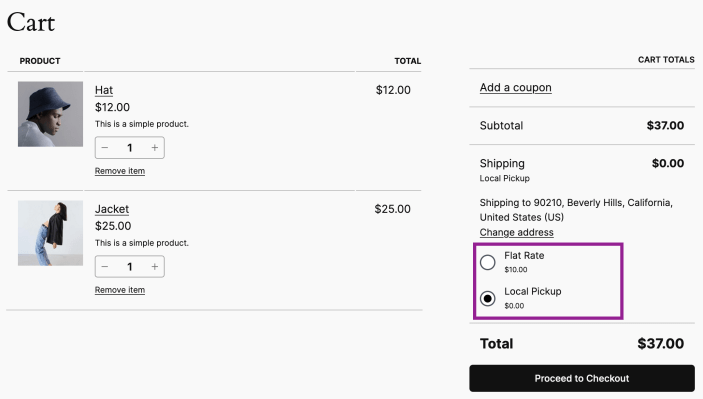
Pickup location, business hours, and contact instructions should be as complete as possible to reduce repeated confirmations from customer support. Image source: WooCommerce official documentation screenshot, used for tutorial reference.
Step 2: Clearly specify the pickup location, hours, and contact info
The most common issue with local pickup is not whether the button appears, but that customers simply don't know where to go, when to go, or whether to contact in advance after placing an order. These instructions are best visible before checkout, rather than added manually by customer support later.
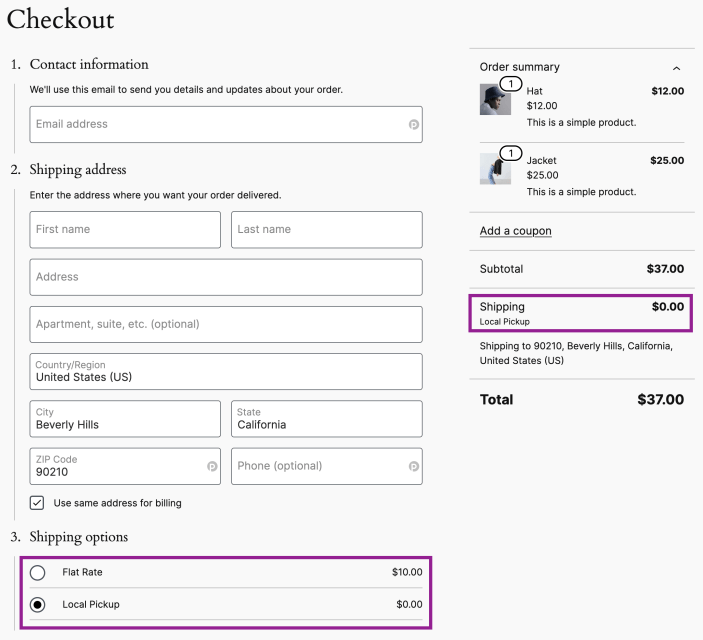
The pickup method displayed on the checkout page must match the actual in-store fulfillment process to prevent customers from choosing incorrectly. Image source: WooCommerce official documentation screenshot, used for tutorial citation and explanation.
Step 3: Decide Whether Local Pickup Is Charged and How It Coexists with Other Shipping Methods
Some stores set local pickup as free, while others charge a handling fee. The key is not which one you choose, but whether it remains easy to understand when displayed alongside standard shipping, free shipping, or same-city delivery, without causing customers to hesitate too long on the checkout page.
Step 4: Simulate a Real Pickup Order
It's best to go through the entire process from placing the order, making payment, receiving instructions, to completing the pickup. Only then can you discover issues like unclear wording, missing notifications, or gaps in the store's fulfillment steps, rather than fixing them only after customers complain.
Practical checklist
- Have clearly determined whether local pickup is a supplementary option or the main fulfillment method.
- Local pickup is only displayed in applicable shipping zones.
- Pickup location, business hours, and contact instructions have been fully filled in.
- Decided whether local pickup is charged, and how it coexists with other shipping methods.
- Simulated the complete self-pickup order process and checked notifications and instructions.
Once local pickup is configured, focus on checking whether it is confused with standard shipping or free shipping campaigns. You can then check Shipping zones display order, confirm Free shipping rules will not mistakenly affect self-pickup orders, then use Order email settings Clearly write the pickup time, location, and contact details.
Frequently asked questions
Should local pickup be free by default?
Not necessarily. If in-store pickup incurs almost no extra cost, offering it for free is more straightforward; if packing, preparation, or manual verification is required, a reasonable handling fee may also be charged.
Why shouldn't some customers see local pickup?
Because the store's service area, business hours, or fulfillment capacity is limited. If users nationwide can see it, it can easily lead to mistaken orders and increase customer service explanation costs.
Will displaying local pickup together with standard shipping affect conversion?
As long as the scenario is clear and the copy is explicit, it generally won't. Issues usually arise when there are too many options and too few explanations, leaving customers unsure which one suits them best.
Join the discussion
You must log in to post a comment.
After logging in, you can join the discussion. New users can register an account for free.
Do not post spam comments, advertisements, or content with malicious links. Comments must comply with relevant laws, regulations, and community guidelines.