


The biggest fear in WooCommerce after-sales is not the refund itself, but the disconnection between order status, customer service notes, and payment platform operations, which makes reconciliation difficult and easily causes customers to receive contradictory notifications. This tutorial breaks down order status judgment, operations on the order details page, and the manual refund process, making it suitable for customer service, operations, and store owners to unify processing standards.
First, unify the criteria for judging order status.
Statuses like Processing, Completed, Cancelled, and Refunded seem simple, but they are most easily confused during team collaboration. If your store sells physical goods, Processing usually means payment has been received but the order has not yet been shipped; once shipping is finished or service delivery is complete, changing it to Completed will be clearer.
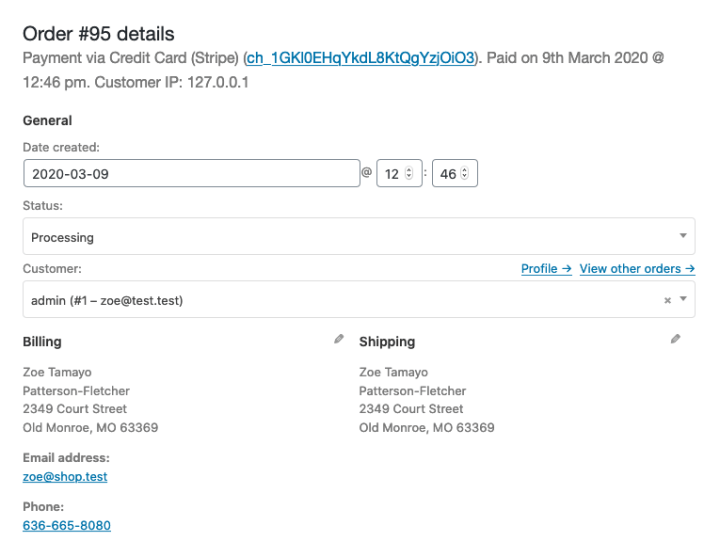
The order details page is the core entry point for handling status transitions, notes, and refunds. Image source: Screenshot from WooCommerce official documentation, used for tutorial reference.
Step 1: Verify payment, products, and customer notes on the order details page.
Before handling after-sales, first confirm the order amount, payment status, shipping status, and customer notes. Many refund disputes are not about money, but because notes about address changes, reshipments, or partial refunds were not recorded in the order, making it impossible for anyone taking over later to understand.
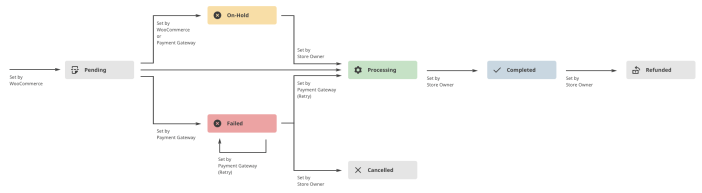
The order status flow chart helps the team unify judgments on Processing, Completed, and Cancelled. Image source: Screenshot from WooCommerce official documentation, used for tutorial reference.
Step 2: Trigger order status transitions based on actual business scenarios.
Don't treat order status as a “looks about right” label. For example, an order that hasn't been shipped should not be prematurely changed to Completed, and a partially refunded order does not mean the entire order is finished. The more accurate the status, the less likely email notifications, reports, and customer service handovers will go wrong.
Step 3: Distinguish between automatic refunds and manual refunds.
If the payment gateway supports direct refunds from the backend, prioritize automatic refunds; if the gateway does not support it, or the payment has already been processed offline, you need to make a manual refund record in WooCommerce. The key to a manual refund is not the button itself, but confirming that the refund has been completed on the payment platform side to avoid inconsistencies between records inside and outside the site.
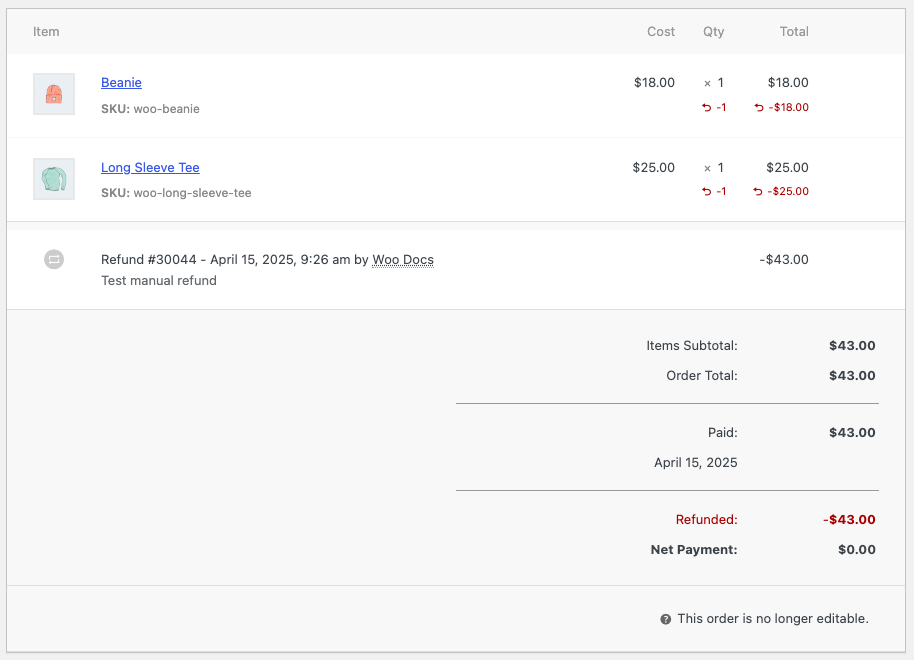
Before a manual refund, first confirm whether the gateway has completed the refund on the payment platform side. Image source: Screenshot from WooCommerce official documentation, used for tutorial reference.
Step 4: After a refund, review emails, inventory, and reports.
After a refund is completed, don't just check whether the order amount has changed; also check whether the customer received the correct notification, whether inventory has been rolled back, and whether the refund has been accounted for in the reports. If it's a partial refund, add notes explaining the reason for the refund and the remaining fulfillment plan.
Practical checklist
- The team has unified the usage criteria for Processing, Completed, Cancelled, and Refunded.
- The order details page retains shipping, price adjustments, address changes, and after-sales notes.
- The applicable scenarios for automatic refunds and manual refunds have been clearly distinguished.
- Post-refund email notifications, inventory rollback, and financial reconciliation have been reviewed.
- For partial refund orders, the reason for the refund and subsequent actions are clearly stated.
After the order and refund processes stabilize, don't just look at the backend status; also check what notifications the customer receives, whether inventory has been replenished, and whether taxes are synchronized. Related checks can be connected. WooCommerce email settings、Inventory management and Tax Settings Do it together, so that after-sales steps are less likely to be missed.
Frequently asked questions
When should an order be changed from Processing to Completed?
Physical goods are usually marked as Completed after shipping or fulfillment is finished. Changing the status too early can affect customer expectations and distort after-sales service, reports, and email notifications.
Does a WooCommerce manual refund automatically return money to the payment platform?
No. Manual refunds primarily record order changes within the site, provided that you have already completed the actual refund through the payment gateway, offline transfer, or other channels.
Does the order need to be kept after a partial refund?
Yes. A partial refund does not mean the entire order is closed. There may still be subsequent re-shipments, continued deliveries, or further communication. The more complete the order records, the lower the after-sales costs.
Join the discussion
You must log in to post a comment.
After logging in, you can join the discussion. New users can register an account for free.
Do not post spam comments, advertisements, or content with malicious links. Comments must comply with relevant laws, regulations, and community guidelines.