


The most common problem with randomly configured WooCommerce email notifications is not poor styling, but that customers don't receive them, the team gets too many, or sender information doesn't match the domain, reducing trust. This tutorial helps you stabilize the basic email chain by covering the notification list, sender settings, and enabling/disabling individual emails.
First, clarify which emails are sent to customers and which are sent to the team.
By default, WooCommerce involves both customer notifications and admin notifications. If you don't distinguish the recipients first, you can easily end up with customers missing status updates while the operations inbox gets flooded with system alerts.
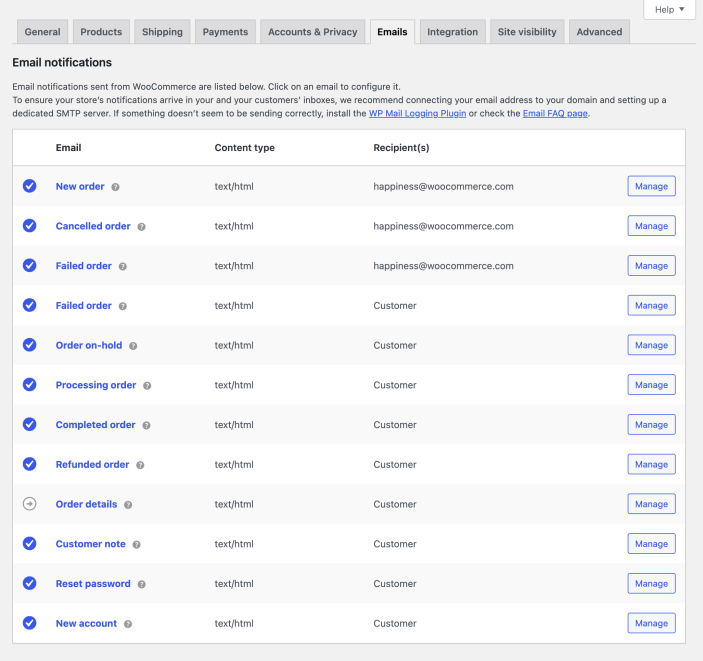
The email notification list allows separate management of new order, processing order, and completed order notifications. Image source: Screenshot from WooCommerce official documentation, used for tutorial illustration.
Step 1: Check whether the email notification list is enabled according to your business needs.
First, confirm one by one whether notifications for new orders, processing orders, completed orders, refunded orders, etc. align with your business flow. Not every template needs to be enabled, and not every template should be sent to the same group—especially when multiple support agents or warehouses collaborate, this distinction is even more important.
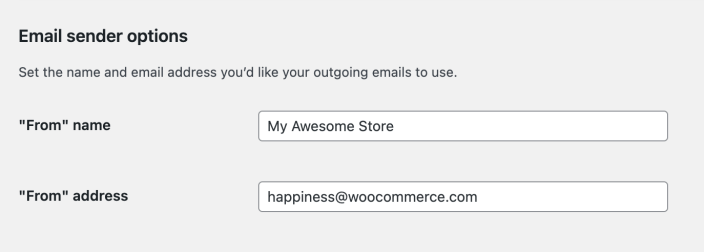
The sender name and address should be consistent with the site domain and customer service flow. Image source: Screenshot from WooCommerce official documentation, used for tutorial illustration.
Step 2: Unify the sender name, email address, and brand information.
The sender name should match your site brand, and the email address should preferably use a business email under your own domain. If you use a free email address or frequently change the sender name, customers are more likely to ignore order notifications or even mark them as spam.
Step 3: Adjust the subject and recipients according to the email type.
For example, “Processing order” can be sent to the customer to confirm payment received, while “New order” is usually sent to the backend team. If your support or warehouse team needs to receive certain notifications separately, it's recommended to adjust the recipients in the specific email template instead of dumping all alerts into one mailbox.
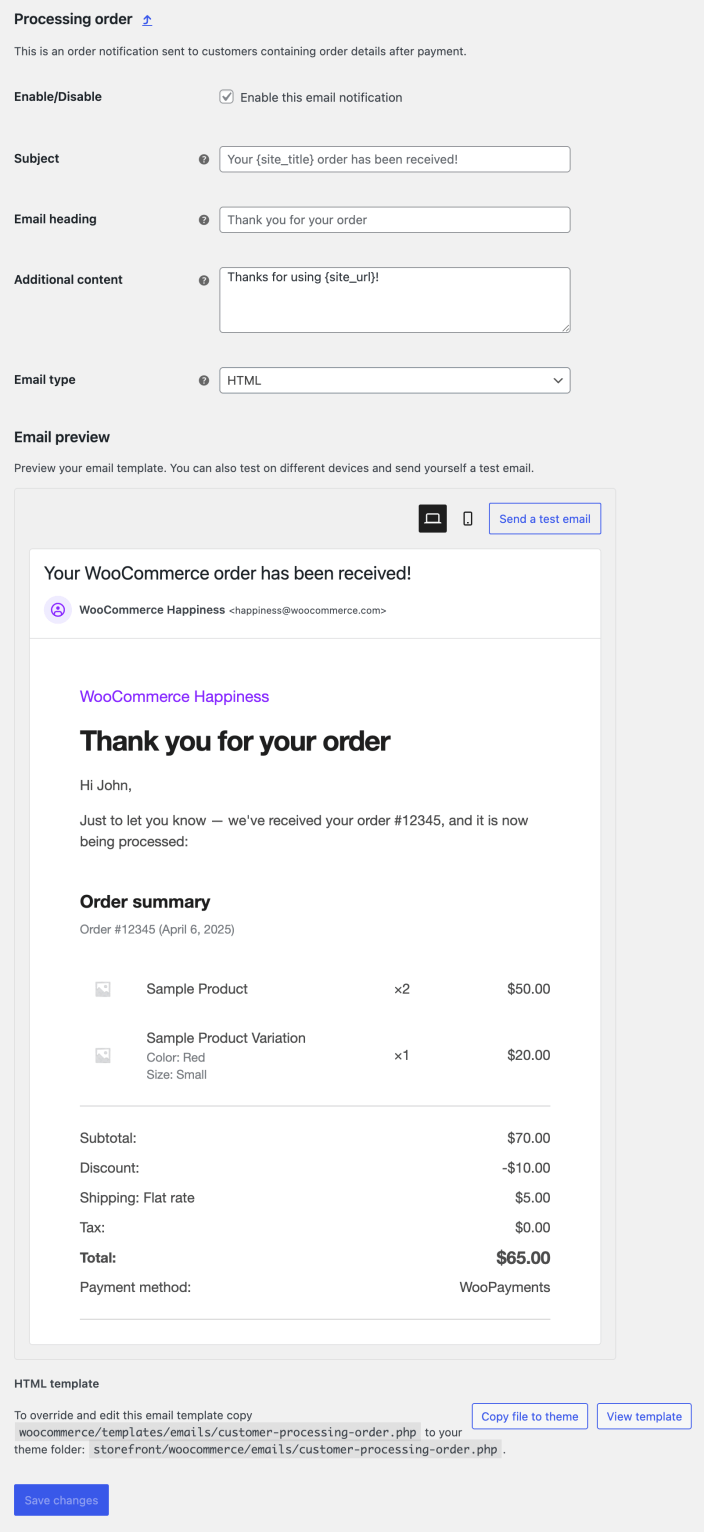
The processing order notification can be enabled, and its subject and recipients modified according to business needs. Image source: Screenshot from WooCommerce official documentation, used for tutorial illustration.
Step 4: Send a real test order and check the delivery results.
After configuration, you must place a test order and check how it appears in the customer inbox, team inbox, and spam folder. If notifications don't arrive, then troubleshoot SMTP, sender domain authentication, and host blocking policies instead of just refreshing back and forth in the WooCommerce interface.
Practical checklist
- The recipients for customer notifications and admin notifications have been clearly distinguished.
- The sender name, sender email, and brand information have been unified.
- The enabled status, subject, and recipients of core order emails have been checked.
- Test orders have verified that both the customer side and the team side can receive the corresponding notifications.
- When emails are not received, you are ready to proceed with troubleshooting SMTP or email delivery services.
After email notifications are set up, it's best to link payment, inventory, and refund scenarios together for verification using real test orders. You can first compare Order status and refund tutorial See which emails are triggered by each status, and then check Stock deduction and out-of-stock reminder, and if the emails involve taxes or shipping amounts, also verify them in passing Tax display method and Shipping zones。
Frequently asked questions
Why Are Customers Not Receiving Emails Even Though WooCommerce Shows Emails as Enabled?
Enabling the template only means WooCommerce allows sending; it does not guarantee successful delivery by the server. You still need to check SMTP, DNS authentication, spam filtering, and hosting restrictions.
Does the Sender Email Have to Use Your Own Domain?
Strongly recommended. Higher brand consistency and more stable delivery credibility make it far more suitable for e-commerce order notifications than long-term use of free email addresses.
Should New Order Notifications Be Sent to Customer Service or the Warehouse?
It depends on your workflow. For low order volumes, you can send everything to a unified operations email; as division of labor becomes more complex, split payment confirmations, fulfillment execution, and after-sales handling across different teams.
Join the discussion
You must log in to post a comment.
After logging in, you can join the discussion. New users can register an account for free.
Do not post spam comments, advertisements, or content with malicious links. Comments must comply with relevant laws, regulations, and community guidelines.