


Many WooCommerce stores don't lose sales because they can't accept payments—customers abandon carts the moment shipping rules become confusing. This tutorial uses screenshots from the official WooCommerce documentation to walk through the setup logic for shipping zones, flat rate, free shipping, and local pickup, so you can make the checkout experience smooth first, then focus on marketing and paid campaigns.
When you should set up shipping zones first
If your products ship to different countries, provinces, or have significantly different shipping costs across product lines, don't cram every region into a single flat rate. Define your shipping zones clearly first—your free shipping thresholds, logistics plugins, and landing page promises won't conflict later.
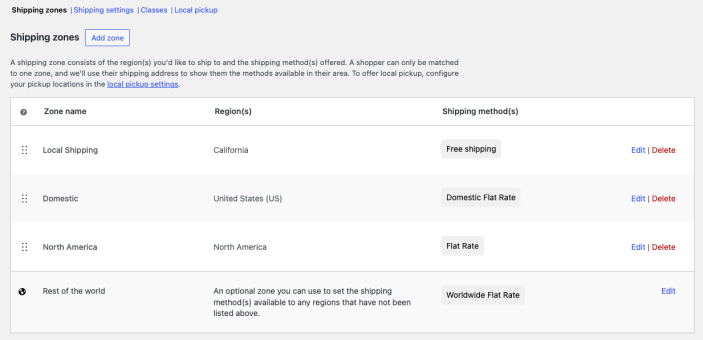
WooCommerce shipping zone list example. Image source: WooCommerce official documentation screenshot, used for tutorial reference.
Step 1: Determine your shipping coverage and default strategy
Once inside WooCommerce settings, first confirm whether your store ships only to specific countries. If you run a cross-border B2B or DTC business, it's better to split your main markets into separate zones—such as North America, Europe, the UK, or Australia—instead of catching everything with "Rest of the world". This makes your promises more consistent when you later connect Stripe, PayPal, or local logistics.
Step 2: Create shipping zones for different regions
Every zone should at minimum have a clear country, state, province, or postcode range. Postcode restrictions are especially useful for bulky goods, remote-area surcharges, and splitting overseas warehouse coverage. Zone order matters—WooCommerce matches the rule listed first, so more specific zones should be placed higher.
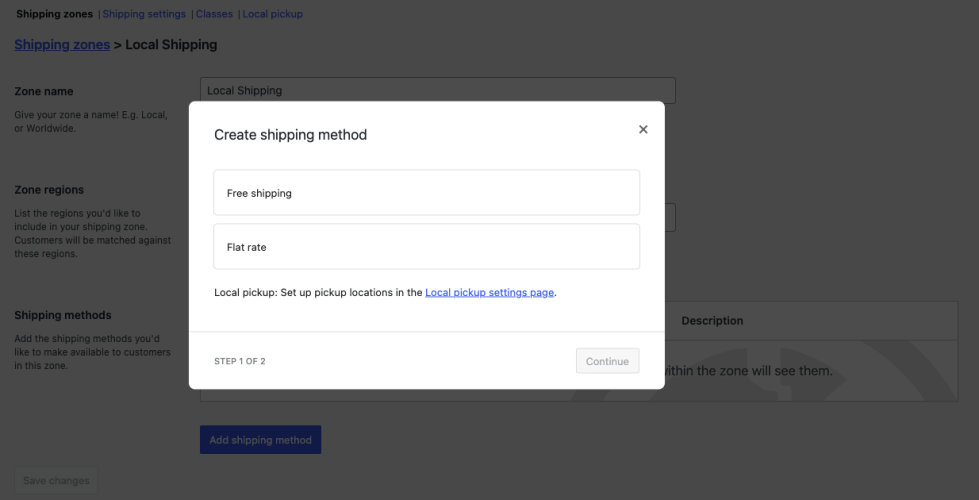
Adding flat rate, free shipping, or local pickup to a shipping zone. Image source: WooCommerce official documentation screenshot, used for tutorial reference.
Step 3: Add flat rate, free shipping, or local pickup
Most new stores start with flat rate because it's the easiest way to control margins. Free shipping works better when combined with a minimum spend threshold to help increase average order value; if you have a physical warehouse or store, local pickup can lower last-mile costs. Don't enable all three methods by default for every region, or your customers will see too many options at checkout.
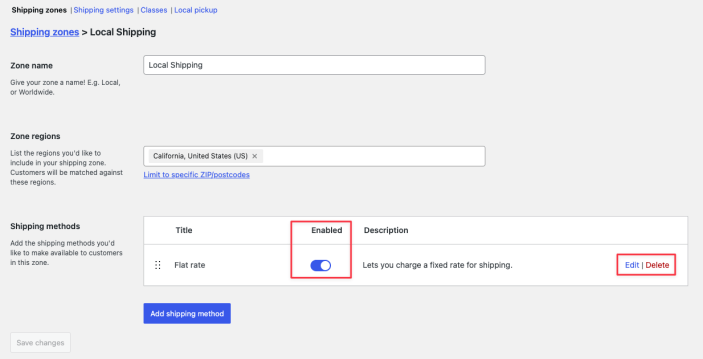
Where to enable, reorder, and remove shipping methods. Image source: WooCommerce official documentation screenshot, used for tutorial reference.
Step 4: Run a real checkout test
Test at least three addresses: an address in your primary market, one in a non-primary market, and one that doesn't match any rule. If the cart doesn't show a shipping method, it's usually because no zone was matched, the product isn't marked as “needs shipping,” or free shipping conditions haven't been met.
Pre-launch checklist
- Name zones clearly by country / business line so they remain maintainable later.
- Place more specific postcode or state/province rules higher to prevent them from being caught by a broad zone first.
- Confirm that flat rate, free shipping, and local pickup only appear in the zones where you want them.
- Check if the shipping text in the cart, checkout page, and order emails is consistent.
- Check if the free shipping threshold promised on the promotion page matches the backend rules.
After the shipping rules go live, it's best to review them together with the checkout configurations: if you also have regional tax rates, you can proceed to check WooCommerce Tax Settings; if you are designing a free shipping threshold promotion, then cross-check it with WooCommerce Free Shipping Rules and Local Pickup Configuration, and test every available shipping method under different shipping addresses.
Frequently asked questions
Why does the frontend still show no available shipping options after I have added shipping methods?
First check if the products are marked as requiring shipping, then confirm whether the test address matches the correct zone. Many issues are caused by zone order, postcode ranges, or overly strict free shipping conditions.
Should shipping zones be set up by country or by shipping templates?
When there are few rules, create zones by country or core market for easier troubleshooting; when you have many SKUs and significant logistics differences, split them by product line or warehouse dimension to avoid one set of rules covering all products.
Can free shipping and flat rate shipping exist at the same time?
Yes. A common practice is to offer both a flat rate and free shipping with a threshold in the same zone, which retains low-order-value orders while encouraging customers to add more items.
Join the discussion
You must log in to post a comment.
After logging in, you can join the discussion. New users can register an account for free.
Do not post spam comments, advertisements, or content with malicious links. Comments must comply with relevant laws, regulations, and community guidelines.